From the home screen in MedEvolve, select Report

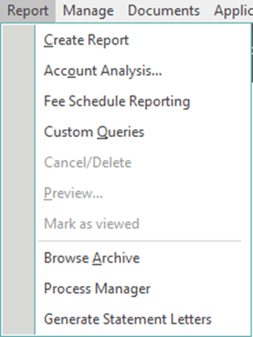
Select Process Manager
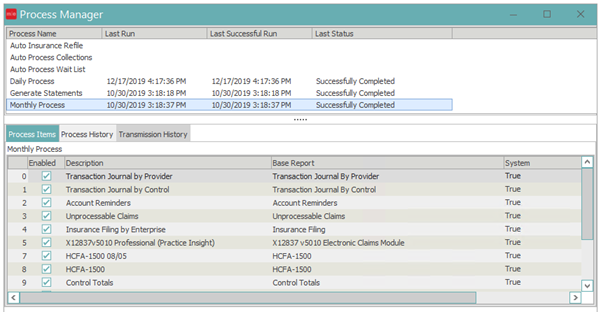
When the process manager screen appears, select Monthly Process
Click Run
When the confirmation popup appears, type I AGREE
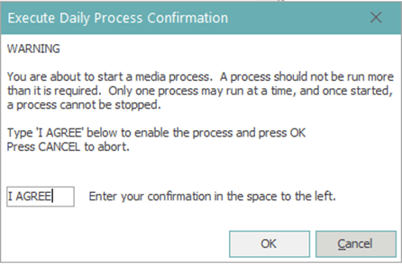
Click OK
You will receive a popup letting you know that the Monthly Process has started
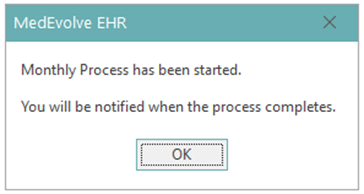
Click OK
Once the daily process has finished, you will receive another popup
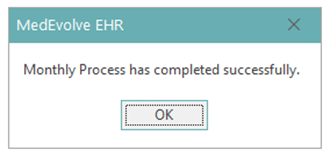
Click OK
Viewing Monthly Process Reports
From the home screen in MedEvolve, select Archive

Once the Archive opens, all reports related to the Monthly process will display
Control Totals → shows Total Credits and Total Debits in each Control during the period.
Revenue and Service by Control → will show Revenue and Service for a specified Date range by Control.
Aged Receivables → provides a listing of accounts, showing the balances in aging buckets.
On Hold Transactions → will allow you to see any charges within an account that are currently “on hold”.
Insurance Filing → shows all accounts that have had a claim generated for them during the selected process.
HCFA 1500 → will regenerate HCFA’s for the day the process was ran.
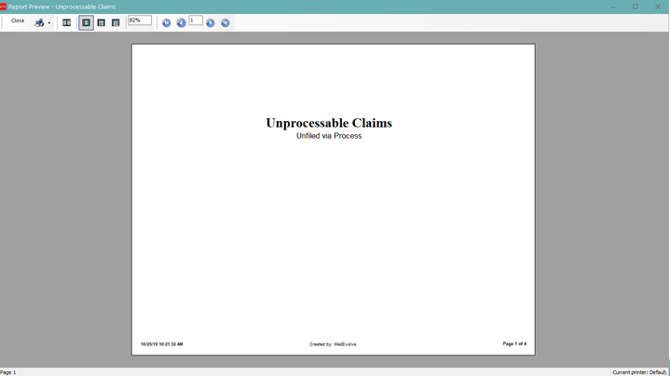
Unprocessable Claims → will show claims with claim rules that have not been met.
Transaction Journal By Control → will show charges, payments and adjustments by Control for a specified data range.
Transaction Journal By Provider → will show charges, payments and adjustments by Provider for a specified data range.
To view a report, double click on the report name