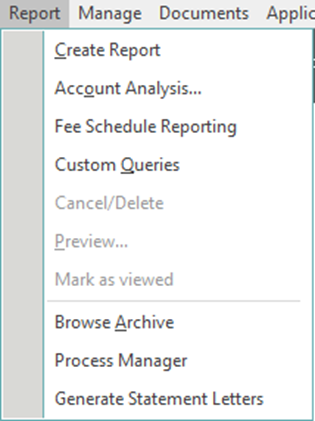
Step 1: From the home screen in MedEvolve, select Report

Step 2: Select Process Manager
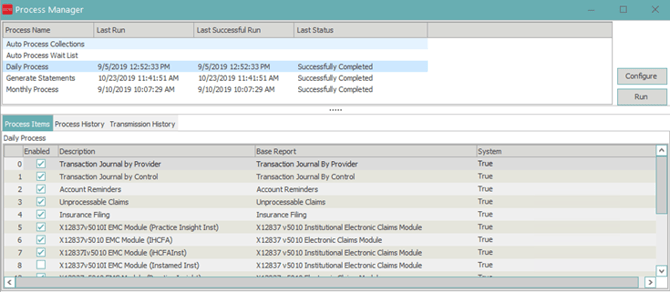
Step 3: When the process manager screen appears, select Daily Process and then select Run.
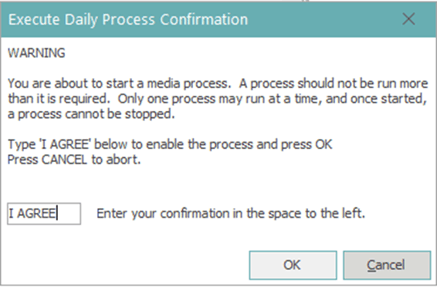
Step 4: When the confirmation popup appears, type I AGREE then click OK.
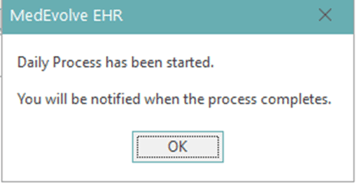
Step 5: You will receive a popup letting you know that the Daily Process has started, click OK.
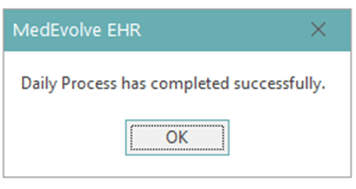
Once the daily process has finished, you will receive another popup. Click OK.
Transferring Claim File to the Clearinghouse
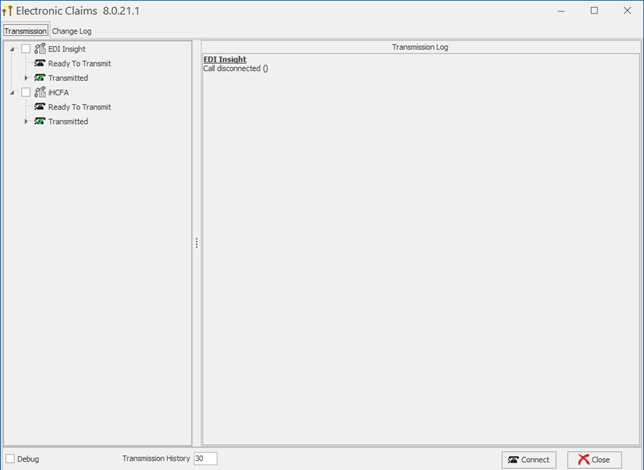
Step 1: From the home screen in MedEvolve, select Electronic Claims.

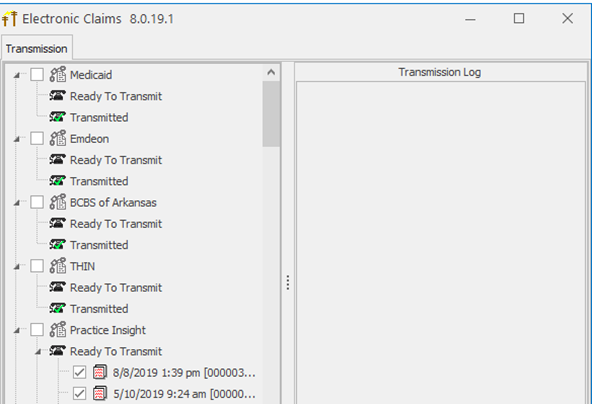
Step 2: Once the Electronic Claims screen appears, select the check box next to the file(s) you want to send to the clearinghouse (keep in mind you can only send claims to 1 clearinghouse at a time) then click Connect.
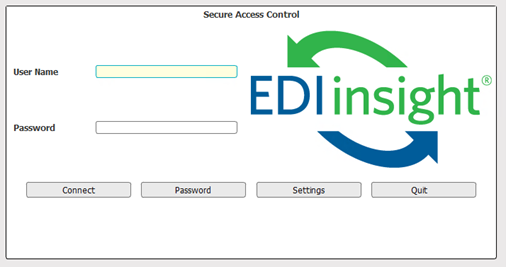
Step 3: The EDI Insight login screen will appear. Enter your user name and password then click Connect.
Step 4: Once Practice Insight opens, click Claim Manager

Step 5: From the Claim Manager screen, click TRANSFER Files

Step 6: A popup will appear with all claim files that sent from MedEvolve. Click the file and verify that the dollar amount matches the dollar amount on the Insurance Filing Report in MedEvolve. Once your verify that the amount matches, click Ready File

Closing Out of the Clearinghouse
Select the X located at the very top right of the screen (NOT the small red X’s)

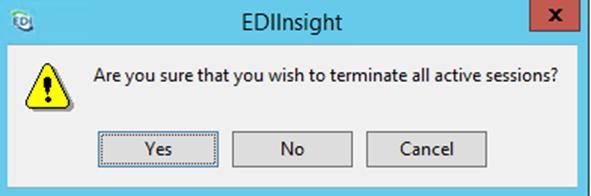
You will receive a popup that asks are you sure that you want to terminate all active sessions, click Yes.
You will now see a popup that says Receiving Files. This is allowing any ERA’s or Changes, since the last time the clearinghouse was closed, to transfer back into MedEvolve.
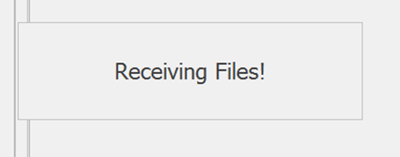
Once all files are received, the popup will automatically close and you will see Call disconnected, click Close.