
From the main screen in MedEvolve:
-
Click on “Posting”
-
Press CTRL+P
-
Click Applications and then click Posting
Once you access Posting, you will automatically be on the Controls Tab. (See Below)

All charge reversals must be posted in an open control. If you have any open controls, they will display in the control box. (See Below)
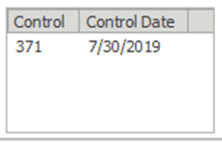
If you want to post a reversal using an open control:
-
Click “Control Number”(located on the top left of the screen)
-
Double click on a control located in the control box.

If you want to post a reversal using a new control:
-
Select “New” (Located on the bottom right of the screen)

When your control number is being displayed in the Control Number field, you are ready to move on to the next step of reversing a charge or payment.
After creating or accessing your control, select the Visits/Transactions tab at the top of Account Posting.

Load the patient account by typing the account number into the account field, or by clicking the word Account to search for the patient.

After you’ve populated the patient account, any previous visits will appear in the upper portion of the window. Select the visit pertaining to the reversal that you need to post and all transactions related to the selected visit will appear in the bottom portion of the window.
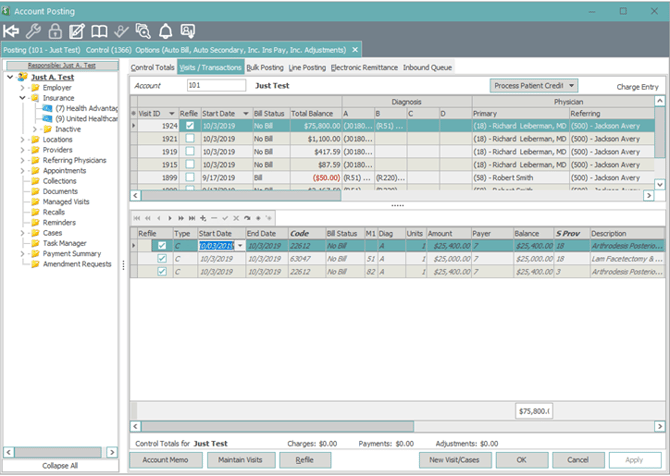
Right click on the Transaction that needs to be reversed and select Pay/Adj Mode.
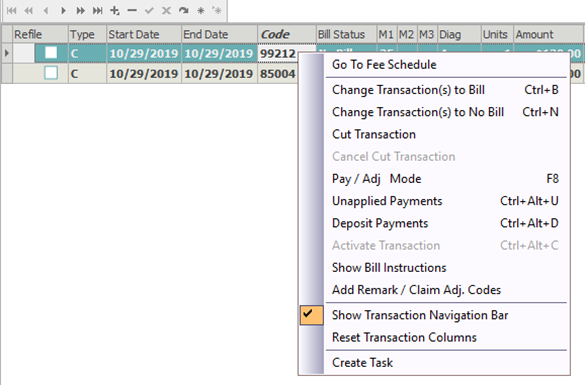
Pay/Adj Mode will display in the upper right corner of the screen.

You will now only see the transaction line that you need to reverse.

Enter the Transaction Type as CC (anytime you are posting a reversal, the Transaction Type will always be the double letter)

Once you enter the Transaction Type as CC, press tab and the reversal information will automatically populate in.

Apply the changes.

Right click on the Transaction that has been reversed and deselect Pay/Adj Mode.
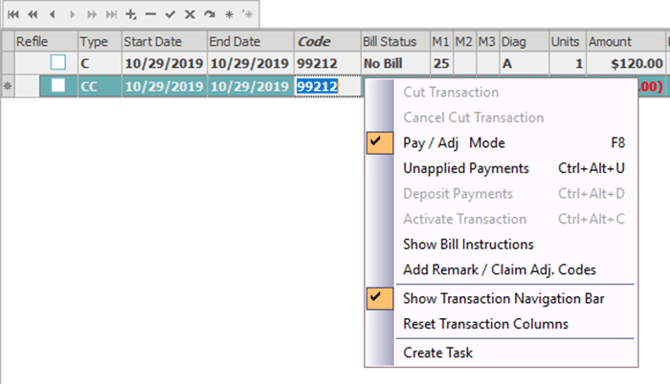
You will now see the charge reversal reflecting on the visit.

Note: You can continue with posting charges for this patient or you may go to the Control Totals tab and close your control.