
ACCESSING PATIENT PAYMENT POSTING
From the main screen in MedEvolve:
- Click on “Posting”
- Press CTRL+P
- Click Applications and then click Posting
ADDITIONAL INFORMATION
Once you access Account Posting, you will automatically be on the Controls Tab. (See Below)

All payments must be posted in an open control. If you have any open controls, they will display in the control box. (See Below)
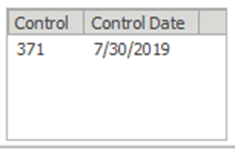
If you want to post payments using an open control:
-
Click “Control Number”(located on the top left of the screen)
-
Double click on a control located in the control box.
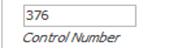
If you want to post payments using a new control:
-
Select “New” (Located on the bottom right of the screen)
When your control number is being displayed in the Control Number field, you are ready to move on to the next step of posting patient payments.
POSTING PATIENT PAYMENTS FROM VISITS/TRANSACTIONS
POSTING PATEINT PAYMENTS TO A SPECIFIC LINE ITEM
Once in an open control, click the Visits/Transactions tab (Located at the top of the Account Posting screen)

Once on the Visits/Transactions screen, you will need to search for your patients account. You can do this 2 ways.
-
Type the account number in the Account field.
-
Click on the italicized word “Account” (Remember all italicized words in MedEvolve are searchable fields) to search for the patient account.
After you have loaded your patient account, select the visit that the payment will need to be posted on by simply left clicking the appropriate visit. (The visit will be highlighted once selected)


Once the appropriate visit has been selected, your charges will be displayed in the middle of the screen.
You will then select the transaction that the payment will need to be posted on by simply left clicking the appropriate charge. (The charge, or transaction, will be highlighted once selected. See below)
One your charge, or transaction, has been selected, you will need to access Pay/Adj mode. You can do this 2 ways:
1. Right click the charge, or transaction, and select Pay/Adj mode. (see below)
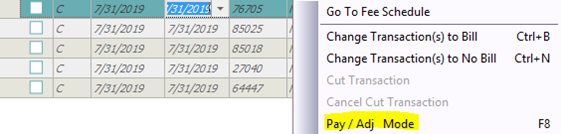
2. Left click on the charge, or transaction and press F8
At the top right corner of the screen, “Pay/Adj Entry” will be displayed and a new transaction line will automatically appear below your charge, or transaction.

You will now post your payment information. To do this you will:
-
Type “P” in the Type Column
-
Change your Start and End date as needed in the Start Date and End Date Column (Today’s date will automatically populate in)
-
Enter the code for the payment type in the Code Column. (If you are unsure of the appropriate code, click the italicized word Code in order to search your payment type options)
-
Enter the payment amount in the Amount Column. (If whole dollar amount, you do not need to type the decimal or 0’s)
Once your payment information is entered you will need to save it. To do this you will:
-
Click “Apply” (Located at the bottom right of the screen)
-
Press F9
After saving your payment, you can return to all transactions. To do this you will:
-
Right click on the charge line and unselect “Pay/Adj Mode”
-
Press F8.
Note: If you need to post another payment to a different charge, or transaction, simply select the new charge, or transaction and follow the steps above.
*To remove a payment you will follow the same steps EXCEPT your Type will be “PP” instead of “P”.*
POSTING PATIENT PAYMENTS TO AN OVERALL VISIT
Once in an open control, click the Visits/Transactions tab (Located at the top of the Account Posting screen)

Once on the Visits/Transactions screen, you will need to search for your patients account. You can do this 2 ways.
1. Type the account number in the Account field.

2. Click on the italicized word “Account” (Remember all italicized words in MedEvolve are searchable fields) to search for the patient account.
After you have loaded your patient account, select the visit that the payment will need to be posted on by simply left clicking the appropriate visit. (The visit will be highlighted once selected)

To post payments to an overall visit balance, allowing the system to allocate the funds to the oldest ‘Bill Date’ transaction on the visit, you will:
1. Right click visit and select Auto Visit Distribution (See below)

2. Select the visit and press F5
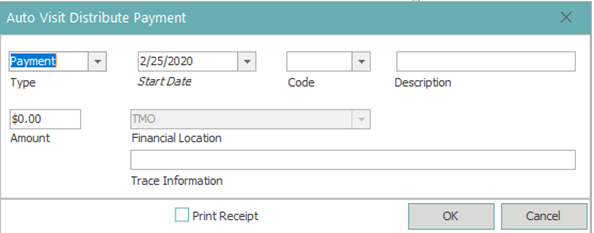
A pop up will appear in the middle of the screen. (See below)
-
“Payment” will default as the type. You will:
-
Change your Start Date as needed in the drop down (Today’s date will automatically populate in)
-
Select your Payment Code from the drop down
-
Add any additional details in the Description free text field
-
Enter the Payment Amount
-
Select your Financial Location
-
Enter Trace Information, if needed
Once finished entering the appropriate information, click OK.
The payment amount will be allocated to each transaction, with a balance, on the visit until all funds are exhausted.(This will start applying the funds to the oldest “Bill Date” transaction)
POSTING PATIENT PAYMENTS TO AN OVERALL ACCOUNT
Once in an open control, click the Visits/Transactions tab (Located at the top of the Account Posting screen)
Once on the Visits/Transactions screen, you will need to search for your patients account. You can do this 2 ways.
1. Type the account number in the Account field.
2. Click on the italicized word “Account” (Remember all italicized words in MedEvolve are searchable fields) to search for the patient account.

After you have loaded your patient account, select the visit that the payment will need to be posted on by simply left clicking the appropriate visit. (The visit will be highlighted once selected)
To post payments to an overall account balance, allowing the system to allocate the funds to the oldest ‘Bill Date’ transaction on the account, you will:
3. Right click visit and select Auto Account Distribution (See below)
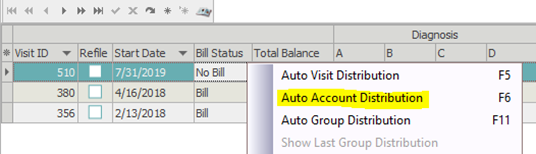
4. Select the visit and press F6
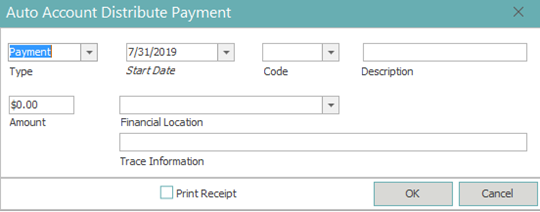
A pop up will appear in the middle of the screen. (See below)
-
“Payment” will default as the type. You will:
-
Change your Start Date as needed in the drop down (Today’s date will automatically populate in)
-
Select your Payment Code from the drop down
-
Add any additional details in the Description free text field
-
Enter the Payment Amount
-
Select your Financial Location
-
Enter Trace Information, if needed
Once finished entering the appropriate information, click OK.
The payment amount will be allocated to each transaction, with a balance, on the account until all funds are exhausted.(This will start applying the funds to the oldest “Bill Date” transaction)
If the payment amount was more than what is owed, the overage will become a credit balance on the visit in which the last payment was posted.
If the payment amount was less than what is owed, the balance of the visits/account would simply adjust according to the amount paid.
POSTING PATIENT PAYMENTS TO AN OVERALL GROUP ACCOUNT BALANCE
Once in an open control, click the Visits/Transactions tab (Located at the top of the Account Posting screen)
Once on the Visits/Transactions screen, you will need to search for your patients account. You can do this 2 ways.
1. Type the account number in the Account field.
2. Click on the italicized word “Account” (Remember all italicized words in MedEvolve are searchable fields) to search for the patient account.

After you have loaded your patient account, select the visit that the payment will need to be posted on by simply left clicking the appropriate visit. (The visit will be highlighted once selected)
To post payments to an overall group account balance, allowing the system to allocate the funds to the oldest ‘Bill Date’ transaction that exists between all accounts linked as a “Group”, you will:
1. Right click visit and select Auto Group Distribution (See below)
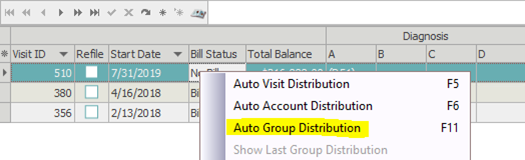
2. Select the visit and press F11
A pop up will appear in the middle of the screen. (See below)
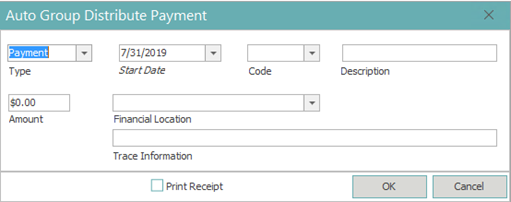
-
“Payment” will default as the type. You will:
-
Change your Start Date as needed in the drop down (Today’s date will automatically populate in)
-
Select your Payment Code from the drop down
-
Add any additional details in the Description free text field
-
Enter the Payment Amount
-
Select your Financial Location
-
Enter Trace Information, if needed
Once finished entering the appropriate information, click OK.
You will then receive a pop up showing all payments created from the group distribution, simply click OK.
The payment amount will be allocated to each transaction, with a balance, across all accounts in the group until all funds are exhausted. (This will start applying the funds to the oldest “Bill Date” transaction)
If the payment amount was more than what is owed, the overage will become a credit balance on the visit in which the last payment was posted.
If the payment amount was less than what is owed, the balance of the visits/account would simply adjust according to the amount paid.
POSTING UNAPPLIED OR DEPOSIT PAYMENTS
Once in an open control, click the Visits/Transactions tab (Located at the top of the Account Posting screen)
Once on the Visits/Transactions screen, you will need to search for your patients account. You can do this 2 ways.
1. Type the account number in the Account field.
2. Click on the italicized word “Account” (Remember all italicized words in MedEvolve are searchable fields) to search for the patient account.
Create a new visit by selecting the New Visit/Cases button in the bottom right of posting application.
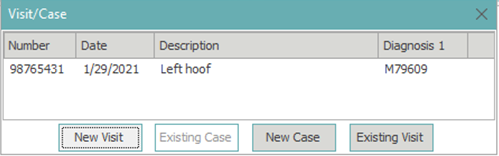
A visit/case pop-up box will appear, select New Visit.
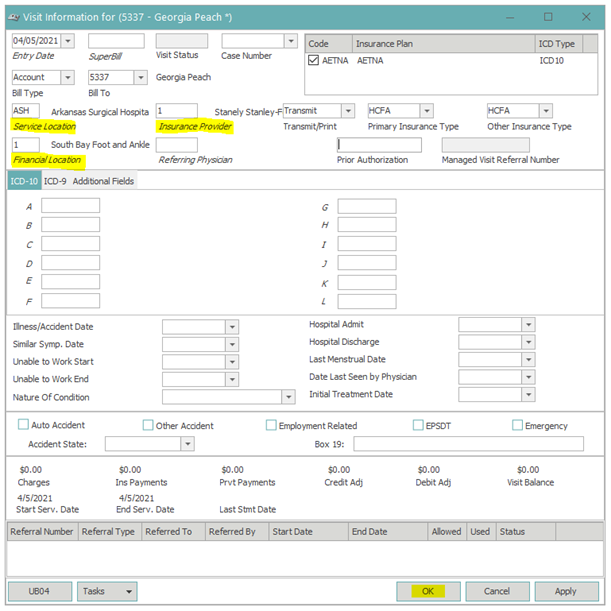
Enter your visit information and click OK.
***Note: When creating a new visit for unapplied or deposit payments –the only required fields are Service Location, Financial Location and Insurance Provider.
In the bottom transaction section, right click and select either Unapplied Payments or Deposit Payments. Keyboard users can press Ctrl+Alt+U for Unapplied Payments or Ctrl+Alt+D for Deposit Payments.
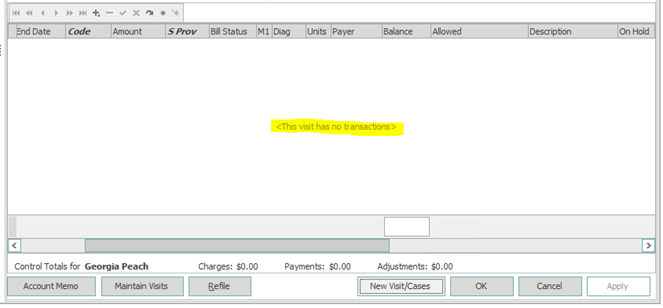
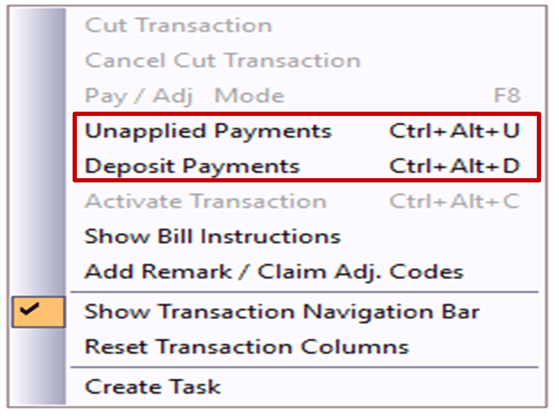
The system generates a charge transaction line with a system charge code of UNAPP for unapplied payments and DEPOSIT for deposit payments. These codes act as placeholders until the actual charge code is ready to be posted.
The system also switches to Pay/Adj Entry mode and inserts a new transaction line below the charge line.

The type field is now blank. Enter P for patient payment.
In the code field, enter the payment code. To perform a payment code search, click the italicized word Code in the column header.
In the amount field, enter the payment amount. For check payments, the check number can be manually added to the end of the description line.
To save, select Apply in the bottom right corner of posting application or press F9.
POSTING PATIENT PAYMENTS FROM LINE POSTING
Once in an open control, click the Line Posting tab (Located at the top of the Account Posting screen)

Once on the Line Posting screen, you will need to search for your patients account. You can do this 2 ways.
1. Type the account number in the Account field.
2. Click on the italicized word “Account” (Remember all italicized words in MedEvolve are searchable fields) to search for the patient account.

After you have loaded your patient account, select the visit that the payment will need to be posted on by simply left clicking the appropriate visit. (The visit will be highlighted once selected)
Once the visit has been selected, you will:
1. Complete the pay line.

-
Start date – Payment date
-
Trace – Check Number
-
Trans Type – Payment, Payment reversal, Insurance or Insurance reversal
-
Tran Code – Payment Code
-
Description – Description of Tran Code
-
Amount – Payment amount can be entered here to help balance. (This is not required)
After the pay line is complete, you will then click in the payment column, on the patient charge row, where you wish to post a payment. Enter the appropriate payment amount for each charge transaction you need to post payments to.

Once your payment information is entered you will need to save it. To do this you will:
1. Click Apply (Located at the bottom right of the screen)
2. Press F9
After payments are saved, they will move below the charge they are associated with.
If you entered an Amount in on the Pay line to help you balance, and your totals do not match, you will receive the following message:

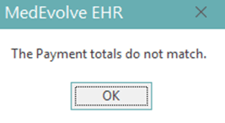
If you receive this message, you will need to either:
1. Correct the Amount entered on the Pay line
2. Update the Payment amount entered on the individual transaction line
Once your payment information is corrected you will need to save it, as explained above.
POSTING PATIENT PAYMENTS FROM THE SCHEDULER
Once in the scheduler you will need to:
1. Right click on the scheduled appointment slot for the patient you need to post a payment for
2. Select Post Patient Payment
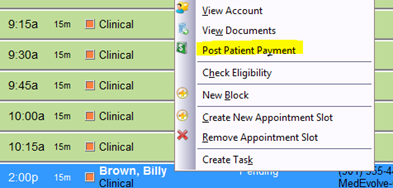
A pop up will appear in the middle of the screen. (See below)
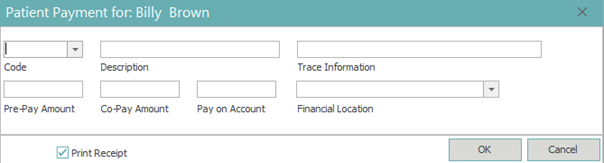
You will:
- Select your Payment Code from the drop down
- Edit details in the Description free text field, as needed
- Enter Trace Information, as needed
- Enter Pre-Pay, Co-Pay or Pay on Account amount
- Select your Financial Location
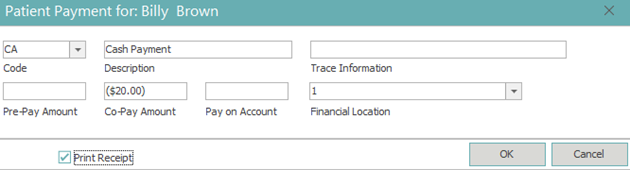
- Click OK
- Press F9
You’ll receive a pop-up that the Patient Payment processing is complete.
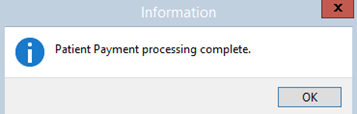
Print Receipt is defaulted, if not needed, uncheck Print Receipt before saving.
Note: A visit is require if posting a Co-Pay. The visit will automatically create when you click OK on the payment details. You are required to populate the Service Location, Insurance Provider and Financial Location on the visit before proceeding.
Posting payments from the scheduler will automatically open a new control for the day you are posting the payment, if you do not already have a control open.
If you have an open control for that date, all payments will reflect in that control.
Posting a co-payment from the schedule will automatically create an unapplied (UNAPP) charge code in order to have a placeholder for the payment. Charges posted later will need to be applied to the appropriate unapplied payment.
BALANCING PAYMENTS AND CLOSING CONTROLS
Once you are finished posting payments, you will need to balance and close the control that the payments are posted in. (This will need to be done regardless of where they payment was posted.)
Select the Control Totals tab at the top of the Posting screen.

The total payments amount, posted in the control, will appear at the top right of the screen.
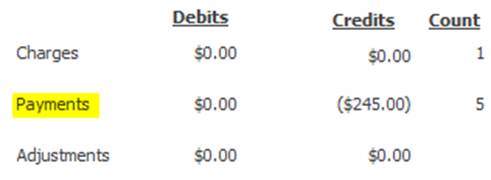
If you need to make adjustments to the payment amounts, or pay codes, you can make the appropriate adjustments directly from this screen. (See below)
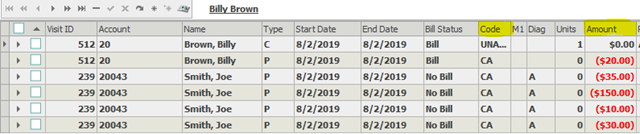
Note: You can only make these adjustments while the control is in an open status. Once the control has been closed, these adjustments can’t be made from this screen.
After you have finished editing and balancing your control, your control is now ready to be closed, click “Close Control”. (Located on the bottom left of the screen.)

A pop up will appear in the middle of the screen. Click Yes. (See below)
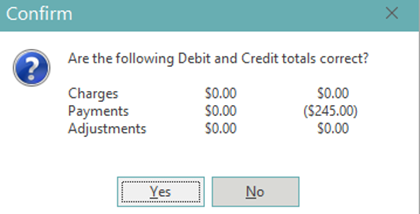
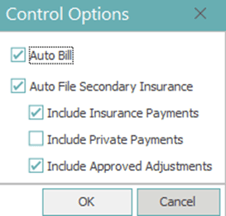
Another pop-up will appear with Control Options. Click OK if additional options aren’t needed. (If user preferences are set up prior to posting, these will default as needed)
Congratulations! Your control is now closed and all payments are posted to the corresponding patient accounts!!!