
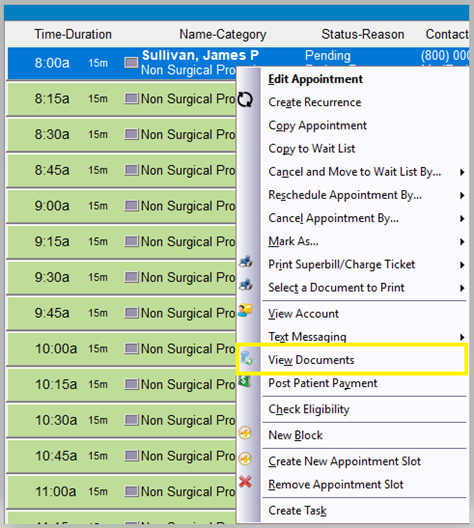
Step 1: Right click on the appointment and select “View Documents”.
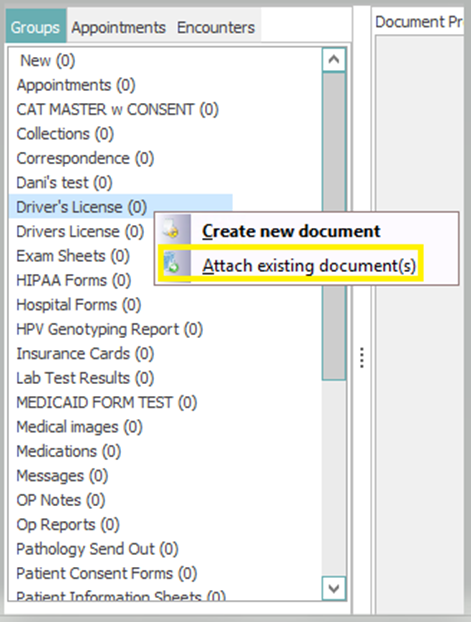
Step 2: When the Account Documents screen appears, right click on the group you want to upload a document to and select “Attach existing document”.
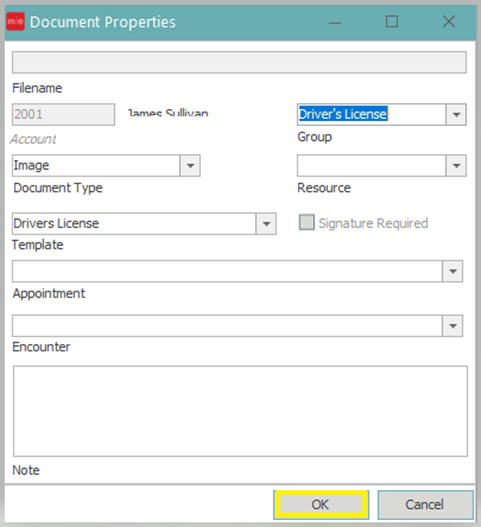
Step 3: When the Document Properties appear click OK.
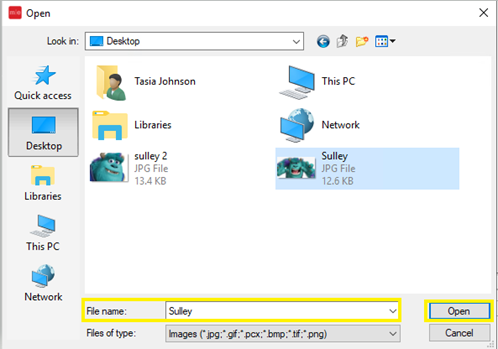
Step 4: Select the document you want to upload to the patient’s account and click “Open”
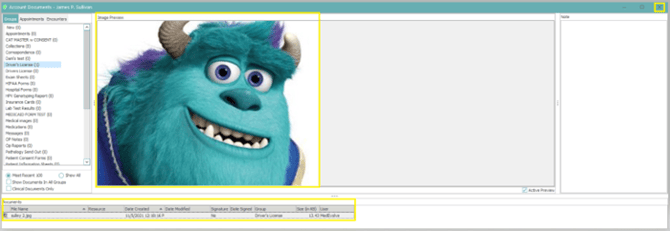
Step 5: You will be brought back to the Account Documents Screen where you will see the file and a preview of the document that has been uploaded to the account. When you are done, click the X at the top right and this will take you back to the main account.
Note: If you are hosted on a RDP, you will need to copy the document from your main desktop and then paste it on the RDP first.