
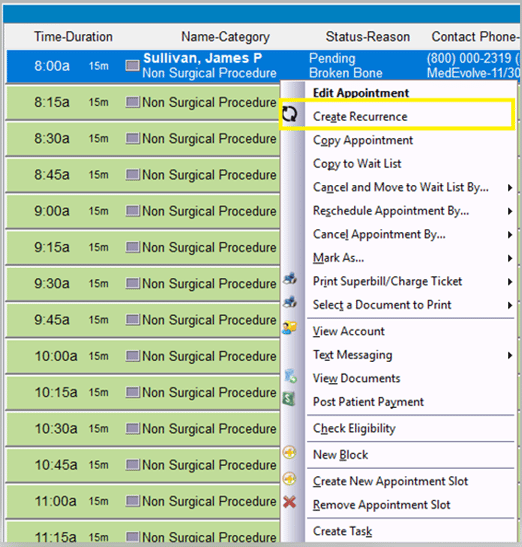
Step 1: Right-click the scheduled appointment and then select “Create Recurrence”.
Step 2: Enter the appropriate recurring appointment details.
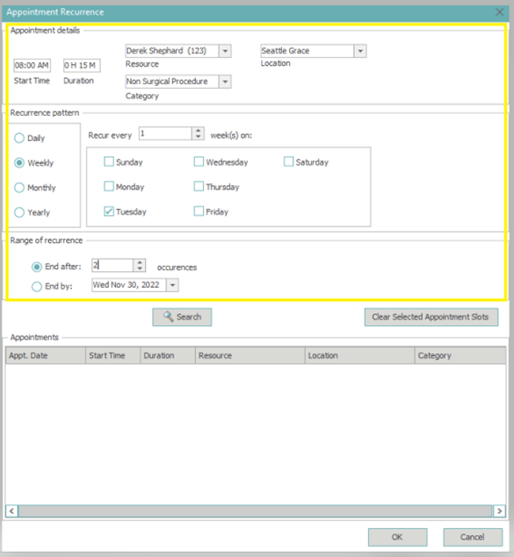
Choose the time, resource, location and category for which you wish to schedule the appointment. Choose if the recurrence will be daily, weekly, monthly or yearly.
If Daily, select how many days you wish the appointment to repeat, every 2 days, every 3 days, etc…
If Weekly, choose how often the weekly appointment will apply, then choose the day(s) of the week you wish to schedule the appointment.
If monthly, you can choose the specific date of the month you wish to schedule, or a variable day such as the third Thursday of every month.
If Yearly, choose if it will be every 1 year, every 2 years, etc., then choose the specific date/month or variable day of the month such as the second Wednesday of every month.
Next, choose the range of recurrence. End after a certain number of appointments, or by a specific date.
Step 3: Click Search to load the appointments that meet your filter criteria.
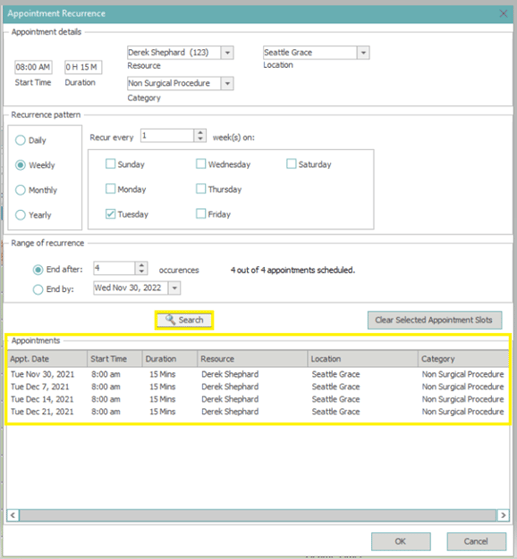
Appointments that meet the criteria you selected will appear in the bottom area.
Note: Any appointments that couldn’t be matched to the selected criteria will be highlighted in red. Double-click those appointments to change your criteria if you need to choose a different date, resource, location or category.
Step 4: Click “OK” to schedule the recurring appointment into the slots listed.
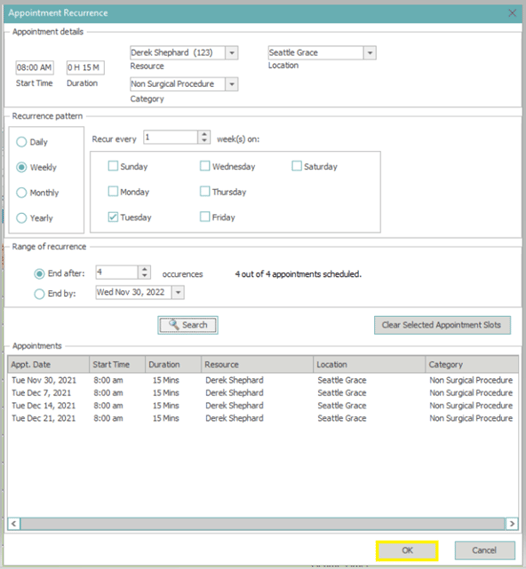
Note: If you choose to only schedule the appointment that met your criteria, without editing the appointments listed in red, you will be presented with a pop-up stating ‘Not all appointments for the recurrence can be scheduled. Continue anyway?’ Select Yes to continue scheduling appointments that could be matched, or select No to return to the appointment recurrence window and make changes to the appointment slots that require attention.
If an appointment is part of a recurring appointment, you will see a recurring appointment icon to the left of the appointment time.