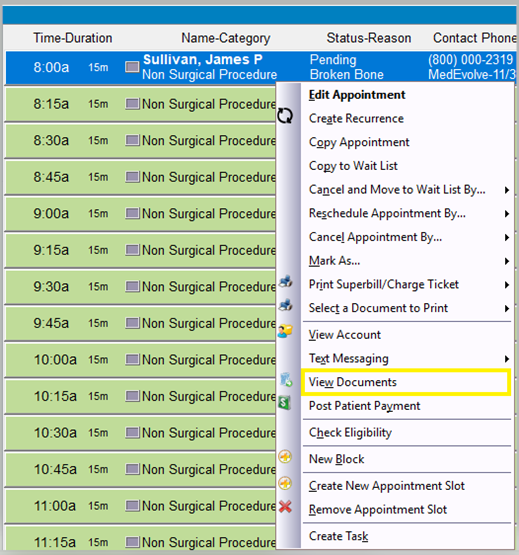
Step 1: Right click on the appointment and select “View Documents”.
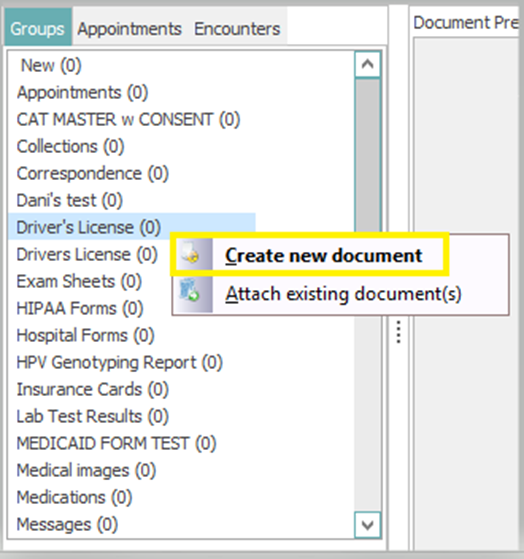
Step 2: When the Account Documents screen appears, right click on the group you want to scan a document to and select Create new document.
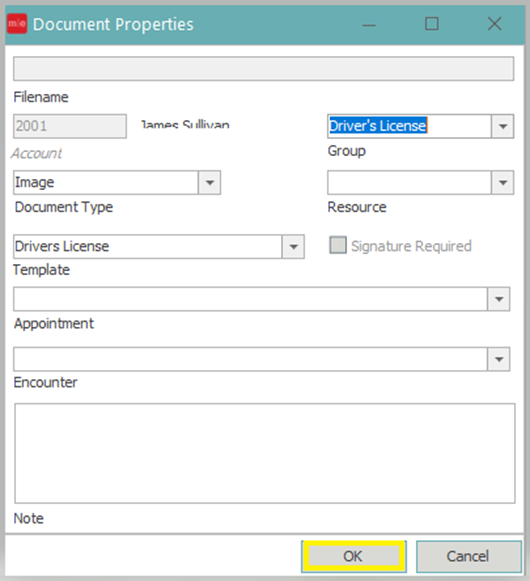
Step 3: When the Document Properties appear click OK.
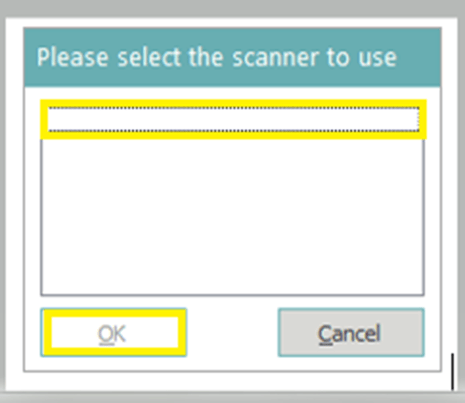
Step 4: Select the appropriate scanner, click OK and then you will feed the document through.
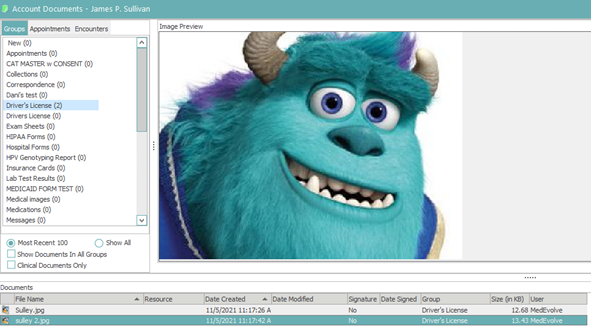
Step 5: You will be brought back to the Account Documents Screen where you will see a preview of the document that has been scanned to the account. Click the X at the top right and the system will prompt you to name to document in order to take you back to the main account.