
Step 1: From the Posting Application, select the Visits/Transactions tab. (Note: You must be in an open control to reverse adjustments.)

Step 2: Load the patient account by typing the account number into the account field. (Alternately, to perform a patient search, click the italicized word Account or click into the Account field and press F3.)

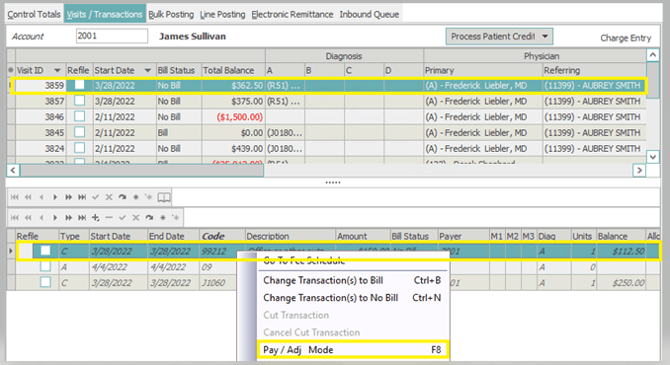
Step 3: Select to the appropriate visit, right click on the charge transaction associated with the adjustment that you want to reverse, and select Pay/Adj Mode (Keyboard users can highlight the transaction and press F8).
Step 4: Enter the Transaction Type as AA, enter the adjustment code, and amount you want to reverse.

Step 5: Select Apply in the bottom right corner of posting application or press F9, to save the changes.

Note: Right click on the transaction that has been reversed and deselect Pay/Adj Mode to see the adjustment reversal reflecting on the visit.