
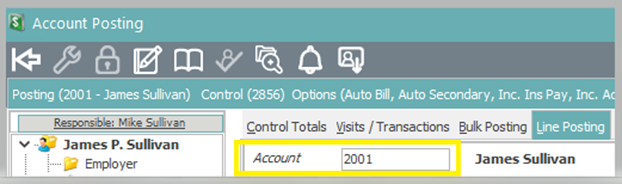
Step 1: From the Posting Application, select the Line Posting tab. (Note: You must be in an open control to reverse payments.)

Step 2: Load the patient account by typing the account number into the account field. (Alternately, to perform a patient search, click the italicized word Account or click into the Account field and press F3.)
Step 3: Select (Left Click) the appropriate visit that you need to reverse a payment on.

Step 4: Enter the Payment Reversal information.

Start Date = Payment reversal date.
Trace = Check # if a check payment. If not a check payment, leave this field blank.
Trans Type = PP for Patient Payment Reversal.
Tran Code = Original Payment Code. To perform a code search, click the italicized word Code in the column header.
Description = Description of original Payment Code.
Amount = Payment reversal amount. (Note: This is just a reference field and the amount does not need to be entered here.)
Step 5: On the transaction line, enter the payment reversal amount in the payment column. (Note: If there are multiple charges that payment reversals needs to be applied to, you will enter the payment reversal amount, specific to each line, in the payment column on each individual line.)

Step 6: Select Apply in the bottom right corner of posting application or press F9, to save the changes.
