
Register a patient by accessing the account information screen
- Press Ctl+A from your keyboard.
- Click the ‘Accounts’ label in the toolbar.
- Click Applications, then click ‘Account Information’.
Registering a New Patient
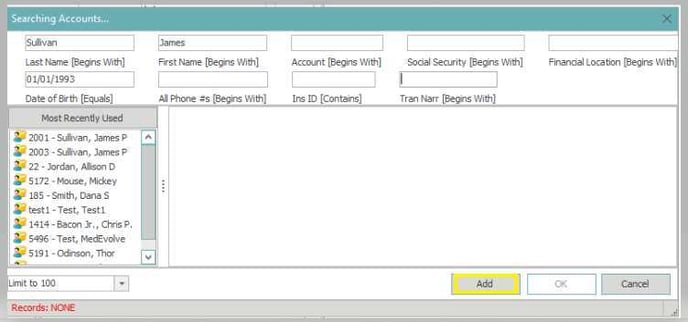
Step 1: Use the search option to search for the patient (Note: any information used to perform the search will populate onto the new patient account.)
There are three way to access the patient search function:
- Left-click the italicized word Account
- Keyboard users – Press F3 when the cursor is in the Account field or F5 from anywhere in Account Information.
- Left-click the binoculars icon from the Account Information toolbar
Step 2: Click “Add” in the bottom right corner of the Patient Search Screen. (This will open the account information screen and pull in any information added on the search screen to the new account)
Step 3: Generate an Account Number
Once the Account Information screen opens, left click on the generate account number icon listed in the tool bar at the top of the screen. This will generate the next account number in sequence.