
Step 1: From the posting application, select the Bulk Posting tab. (Note: You must be in an open control to post charges.)

Step 2: Select (Left Click) the + icon in the upper-left of the transactions section. A new charge line will appear.

Step 3: Load the patient account by typing the account number into the account field. Alternately, to perform a patient search, click the italicized word Account or click into the Account field and press F3.

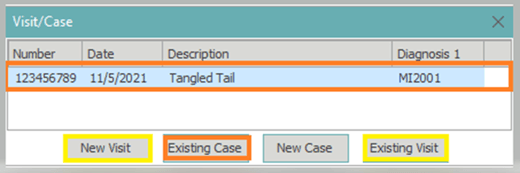
Step 4: After the patient account is loaded, a visit/case pop-up box will appear.
To post to an existing visit, select Existing Visit and then select the appropriate visit from the top visit section of the screen.
To create a new visit select the New Visit button. (Note: If you are using a new visit, you will need to fill out the visit information screen.)
To use an existing case, left click the case to highlight it and select Existing Case.
Step 5: After a new visit is created or an existing visit/case is selected, enter the charge details. If there are multiple charges, select the the + icon or the down arrow on the keyboard to add an additional charge line.

Note: If there is a patient payment, it must be posted immediately following the charge to which it should be applied.
When finished adding all charges and payments for that patient/visit, select the + icon or the down arrow on the keyboard to add an additional charge line. Enter the next account number in the account field and begin entering charges for your next patient. Continue this process until you are done entering charges/payments for all patients.

Step 6: Select Apply in the bottom right corner of posting application or press F9, to save the changes.
