
Step 1: From the Posting Application, select the Visits/Transactions tab. (Note: You must be in an open control to post adjustments.) 
Step 2: Load the patient account by typing the account number into the account field. (Alternately, to perform a patient search, click the italicized word Account or click into the Account field and press F3.) 
Step 3: Select to the appropriate visit, right click on the appropriate charge transaction, and select Pay/Adj Mode (Keyboard users can highlight the transaction and press F8). 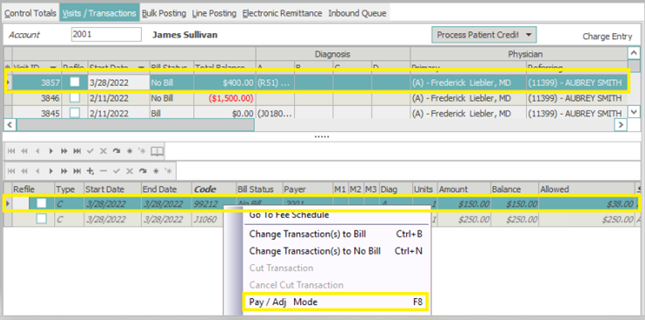
Step 4: Enter A for patient adjustment into the new transaction line that was inserted below the selected charge transaction.
In the code field, enter the adjustment code. To perform a code search, click the italicized word Code in the column header.
In the amount field, enter the adjustment amount. 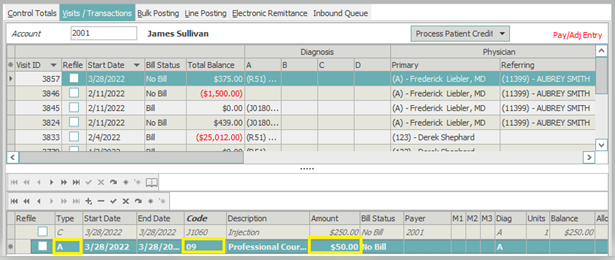
Step 5: Select Apply in the bottom right corner of posting application or press F9, to save the changes.

Note: To return to charge entry mode, press F8 or right click the transaction and uncheck Pay/Adj Mode.