
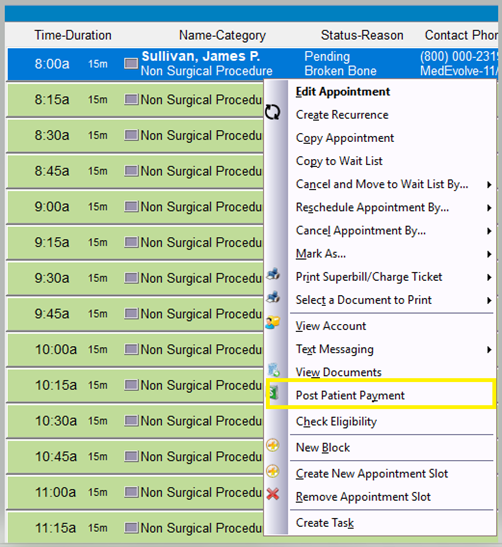
Step 1: Right click on the scheduled appointment slot for the patient you need to post a payment for, and then select “Post Patient Payment”.
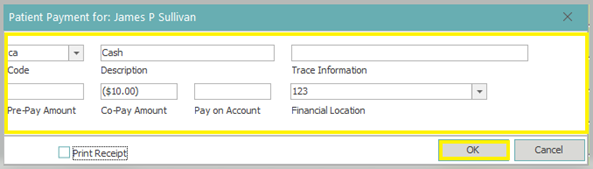
Step 2: Fill out the appropriate information on the pop up screen, and then click “OK”.
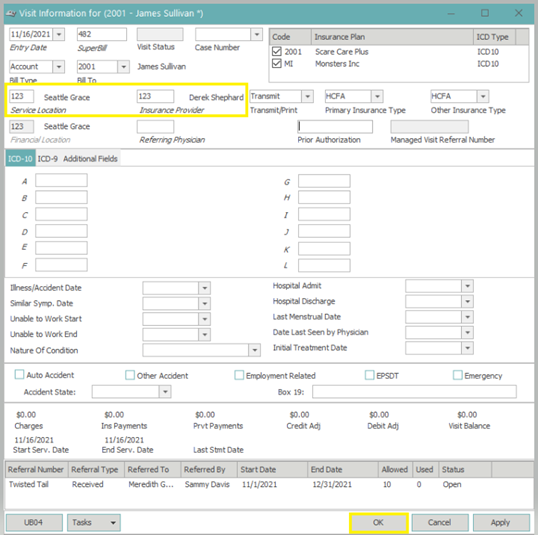
Step 3: On the Visit Information Screen, enter the Service Location and Insurance Provider for the patient’s visit, and then click “OK”. (Note: The Financial Location is also required, but should populate from the previous screen.)
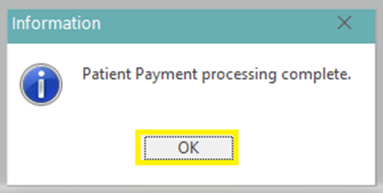
Step 4: Click “OK” on the popup screen, which is letting you know that the payment posting process is complete.
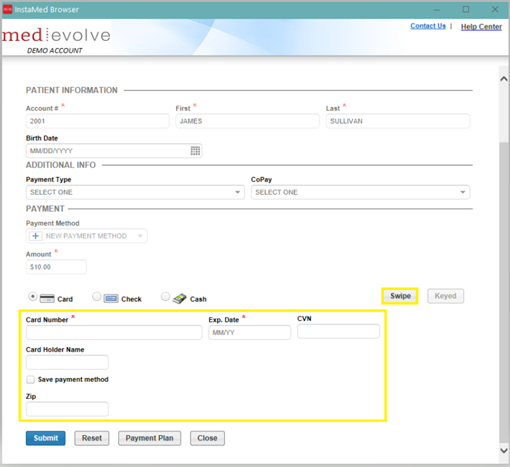
Step 5: Once the Instamed Portal opens, enter the credit card information, or select “Swipe” if you have a card reader and swipe the card, and then click “Submit”.
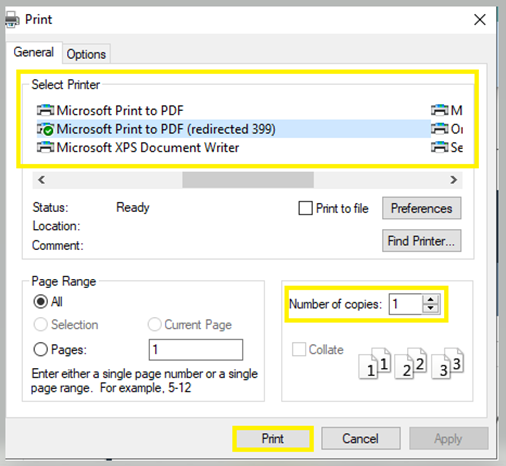
Step 6: Once you click submit, a popup will appear for you to print a receipt. Select the appropriate printer and number of copies you want to print, and then left click “Print”.
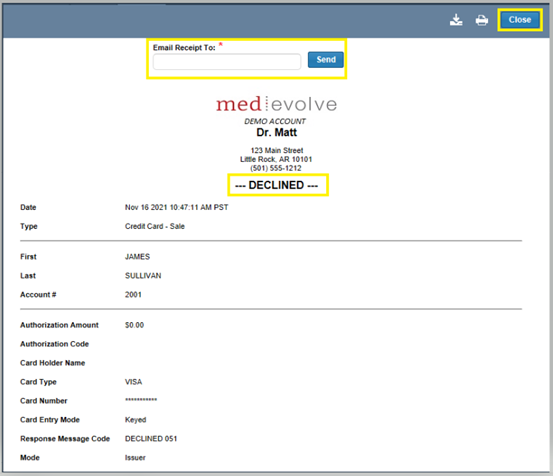
There will be another popup screen, directly behind the printer popup, where you will see if the payment was Approved, Declined, or Partially Approved. From this screen, you will also have the option to email a receipt to the patient. If you want to email a receipt, simply enter the patients email address and left click “Send”. Once you are done printing/emailing the receipt, left-click “Close” to return to MedEvolve.
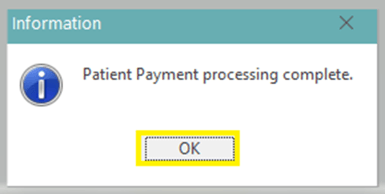
Step 7: Click “OK” on the popup screen, which is letting you know that the payment posting process is complete.
Note: Posting payments from the scheduler will automatically open a new control for the day you are posting the payment, if you do not already have a control open. If you have an open control for that date, all payments will reflect in that control.