
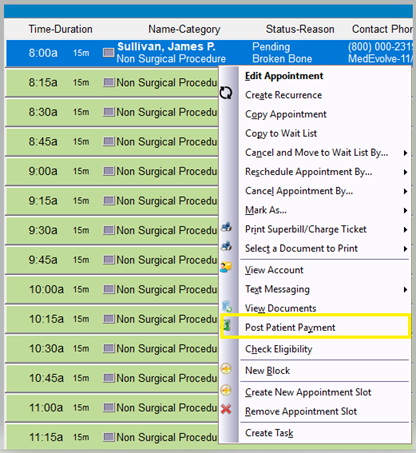
Step 1: Right click on the scheduled appointment slot for the patient you need to post a payment for, and then select “Post Patient Payment”.
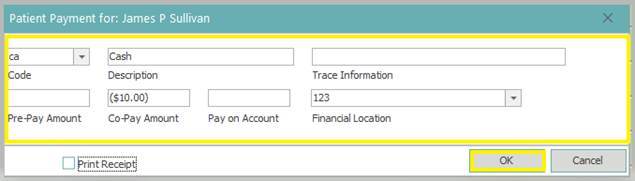
Step 2: Fill out the appropriate information on the pop up screen, and then click “OK”.
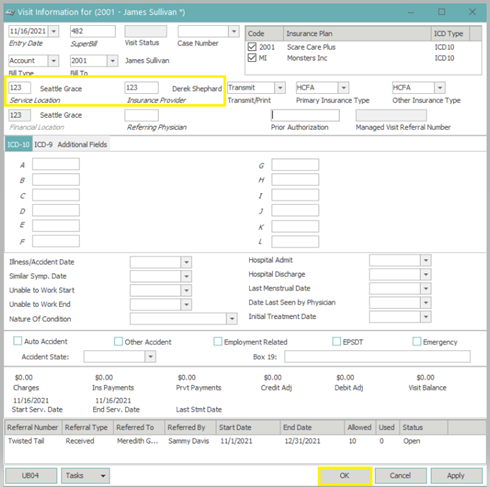
Step 3: On the Visit Information Screen, enter the Service Location and Insurance Provider for the patient’s visit, and then click “OK”. (Note: The Financial Location is also required, but should populate from the previous screen.)
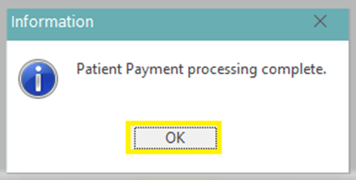
Step 4: Click “OK” on the popup screen, which is letting you know that the payment posting process is complete.
Note: Posting payments from the scheduler will automatically open a new control for the day you are posting the payment, if you do not already have a control open. If you have an open control for that date, all payments will reflect in that control.