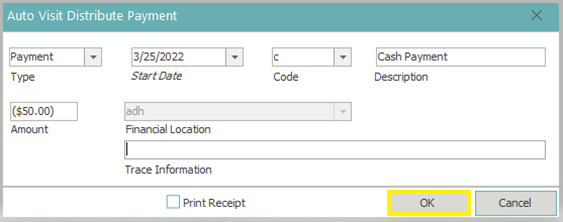
The auto visit distribution function will distribute the payment across the selected visit. Money is applied to the first listed charge transaction’s balance and if any money is leftover, it will apply it to the next charge transaction and so on until there is no money left to apply. The system will auto-create the necessary payment transaction(s).
Step 1: From the Posting Application, select the Visits/Transactions tab. (Note: You must be in an open control to post payments.)

Step 2: Load the patient account by typing the account number into the account field. (Alternately, to perform a patient search, click the italicized word Account or click into the Account field and press F3.)

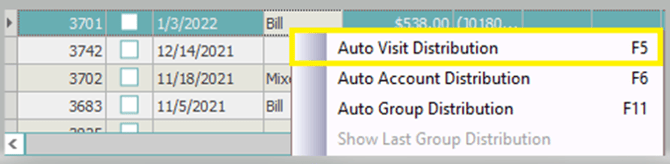
Step 3: Select to the appropriate visit and then right click on the visit and select Auto Visit Distribution. (Keyboard users can highlight the visit and press F5.)
Step 4: Fill out the payment information.
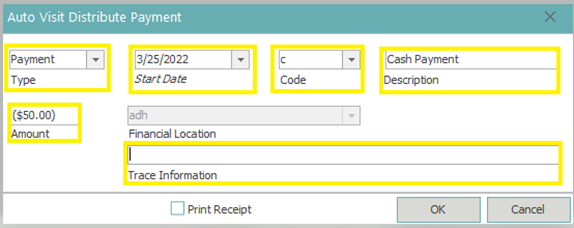
In the payment pop-up window, type defaults to payment.
Start date – update if necessary
Code – enter payment code
Amount – enter payment amount
Trace information – this is where a check number can be referenced
Step 5: Select OK and the system will auto-create the necessary payment transaction(s)