
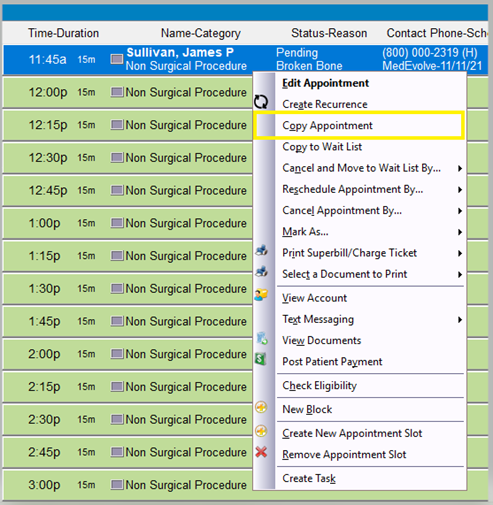
Step 1: Right-click on the appointment you wish to copy to another date, time, resource, location, or category and select “Copy Appointment”. (It will appear as if nothing happened, but this will save the appointment details to the clipboard.)
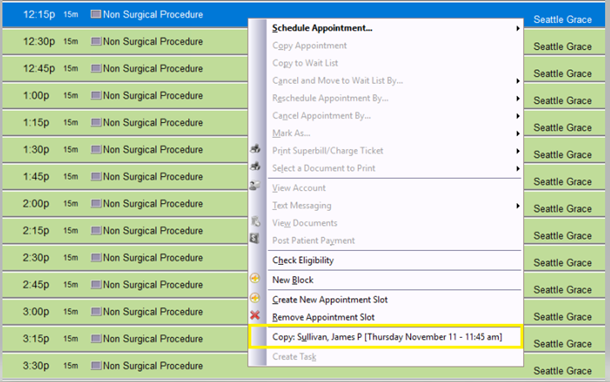
Step 2: Right-click the new appointment slot you wish to copy the previous appointment to, then select Copy: <Patient Name> [Day, Date, Time]
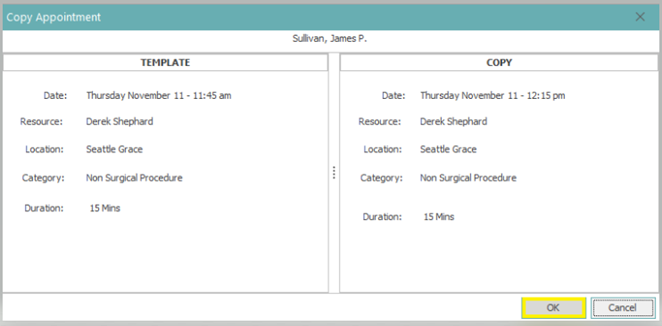
Step 3: Left click “OK” on the popup to accept any changes.
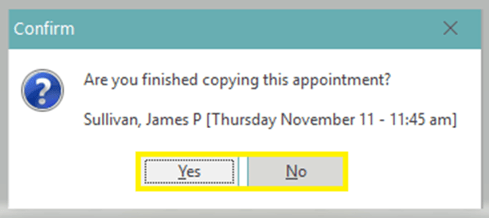
Step 4: Choose ‘Yes” if you are finished copying the appointment or “No” if you are not. (Note: Since the appointment detail is still on the clipboard, the appointment may be copied repeatedly, if necessary. To continue copying this appointment to other appointment slots, select “No” when prompted , which will keep the appointment saved to the clipboard until you select “Yes”, which will remove the appointment from the clipboard..)
Note: you will need to update the appointment detail of the new appointment(s) accordingly.