
Accessing Eligibility Setup
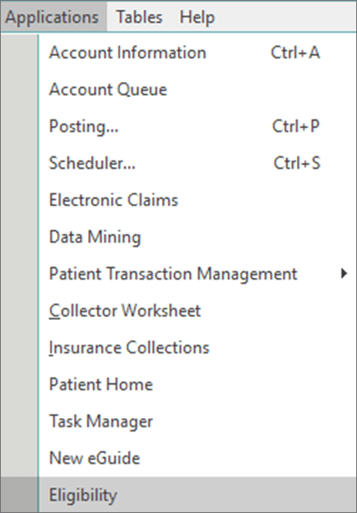
From the Applications drop down menu, select Eligibility.
Setup Tab
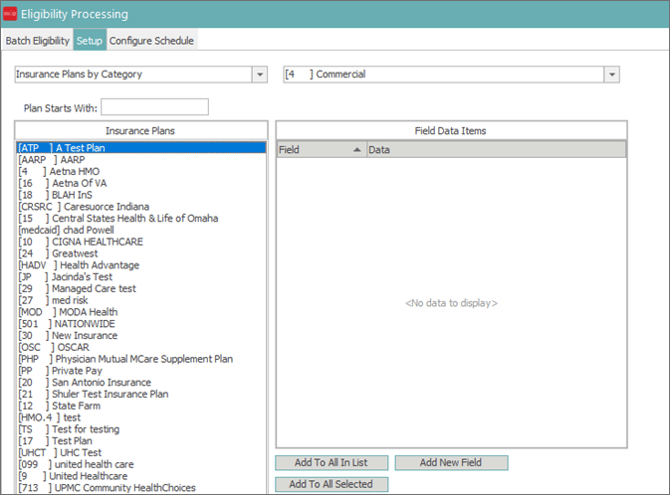
From the Eligibility Processing window, select the Setup tab.
Inside the Setup tab there are two drop down boxes and two windows. Leave the first drop down box on Insurance Plans by Category. From the second drop down box, select the insurance category containing the insurance plan/s that need to be setup. Once selected, the window to the left will display all insurance plans in the selected category. The insurance plans can be filtered according to the starting letter by typing the desired letter into the “Plan Starts With” field.
Field Data Items
The Field Data Items window to the right is blank by default. To populate the Field Data Items, select the Add New Field button twice.
Field Column
In the Field column for the first field, click the drop down menu and select EligPayer.
For the other field, select IDType.

Data Column
In the data column for EligPayer, enter the appropriate Elig Payer ID #, which will be found in the clearinghouse.
In the data column for IDType:
For providers that bill under a group, type ECNPI.
For providers that bill as an individual, type IPNPI.

To save field and data items, select the Apply button in the bottom right corner.
Applying Setup to Multiple Plans
Field and data items can be applied to multiple insurance plans at a time by using either of the Add To buttons.

Add To All In List – this function will add the field and data setup of the currently highlighted plan to ALL plans in the Insurance Plan window *
Add to All Selected – this function will add the field and data items to all plans highlighted in the Insurance Plan window *
- First select all desired plans by holding down Ctrl on the keyboard and clicking the appropriate insurance plans.
- Add or edit field/data items.
- Press Add to All Selected button.
* Exercise caution if using either of these functions. There is not an undo function in this setup.