
Enhancements
Insurance AR Configuration
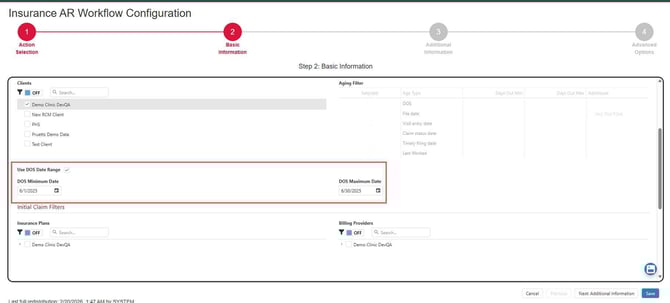
Date of Service Date Range Admins can now configure worklists by using a specific date of service date range rather than configuring the worklist by aging. Users can enable the flag to Use DOS Date Range within the Basic Information in the Insurance AR configuration create, edit and clone pages. Upon selection of the new flag, any previously saved aging filters will be removed if editing or cloning. The minimum and maximum dates selected cannot be future dates and can only be configured for days in the past to current date. Please note the Aging Filter and User DOS Date Range flag do not work conjunction. Therefore, when the User DOS Date Range option is enabled, the Aging Filters are disabled by design.
Insurance AR User Productivity Report
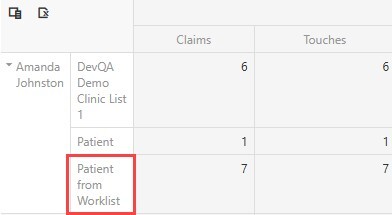
The Insurance AR user productivity report now reflects when patient claims are worked from a worklist when the user navigates to the patient claims list from the Insurance AR action tab option to show all claims for account. “Patient from Worklist” is displayed rather than “Patient” as reflected when working claims from the patient search.
Patient AR Configuration Redesign
MedEvolve has redesigned the Patient AR worklist configuration in effort to provide a more organized and efficient way of managing Patient AR worklists. The parameters displayed have not changed, however, have a more user-friendly flow. Upon navigating to the Patient AR Workflow Configuration, admins can select to create a new list, edit, or clone lists. Admins can also delete & reprioritize lists more easily, redistribute and perform any of our advanced options to clear worklist, view change history, export history, export selected configuration, export all configurations or view the priority history.
Action Selection
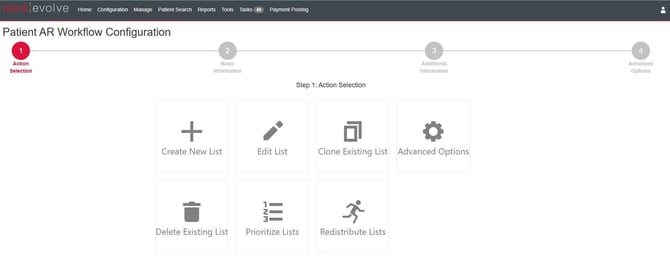
Create New List
Basic Information
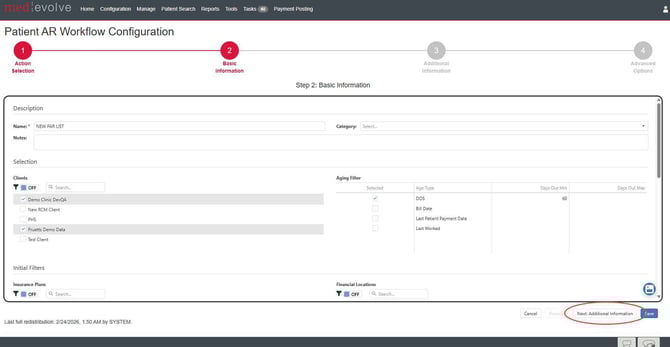
When creating a new list, users will enter all basic information such as the worklist name, category, any applicable notes, client selection, aging filters, insurance plans, financial locations, billing codes, patient categories & statuses. To advance to the next step, users will then select the Next: Additional Information button to make additional selections.
Additional Information
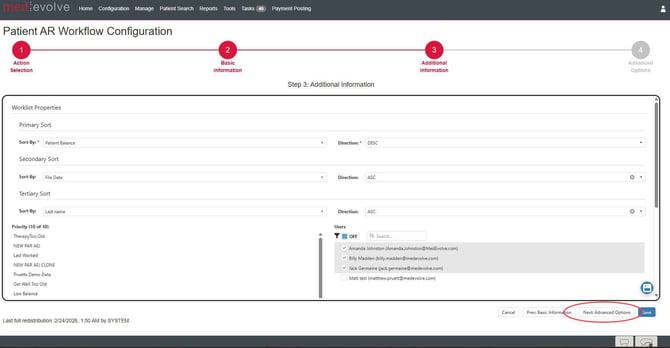
Upon navigating to the next page, admins can select the sort options and reorder the priority of the new worklist. Admins will also select user(s) to assign the worklist and any applicable action codes. Please note Patient AR can now be assigned to multiple users within the new configuration design to evenly distribute the worklist among the selected users. After these selections are made, admins can then select the next step to select advanced options.
Advanced Options
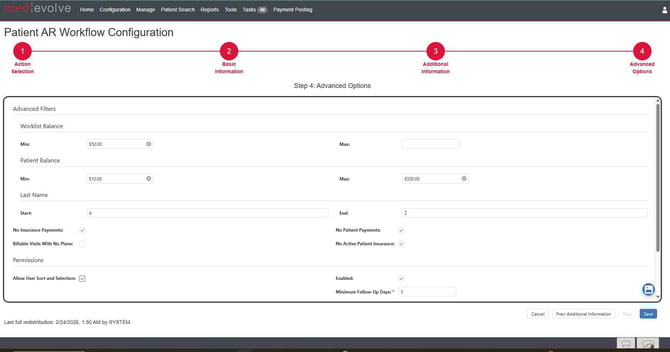
Within the advanced options, admins can set worklist & patient balance parameters, set Last Name start/end criteria, configure by no insurance or patient payments, billable to visits with no plans, or active patient insurance. Admins can also set permissions to allow user sort and selection, enable/disable the worklist, set min/max follow up days or tag the worklist as high risk.
Edit List
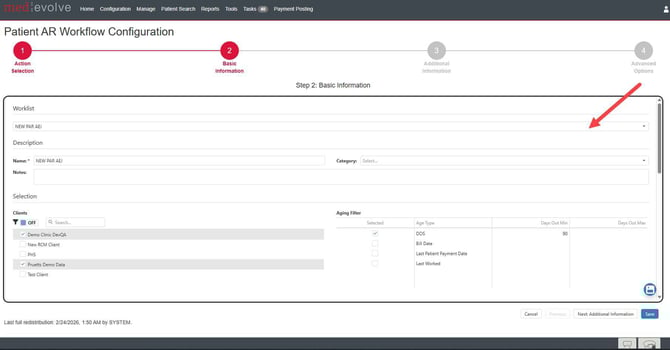
Users can edit any worklist by selecting the Edit List option from the Action Selection page. Here, users can make any applicable updates to the selected worklist, which will walk them through the same configuration layout as they encountered during creation of a worklist.
Clone List
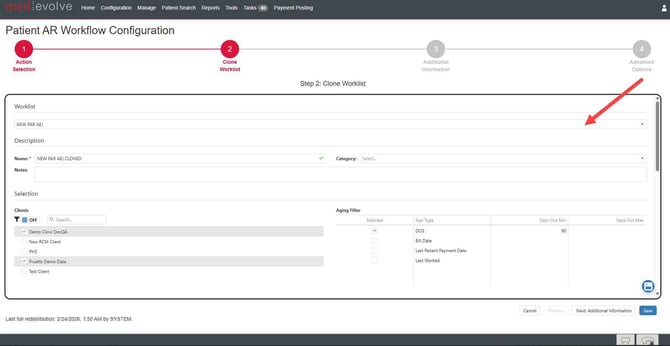
Within the Action Selection page, users can select to Clone Lists simply by selecting the tile option. After selecting a worklist to clone from the selection dropdown, users will then enter the name of the new worklist and make any applicable updates prior to saving the new worklist.
Advanced Options
The advanced options contain the ability to clear specified worklists, view change history, export history, export configuration, export all configurations, and view the prioritization history. Admins will first select the intended worklist then select any of the specified advanced options.


Delete Existing Lists
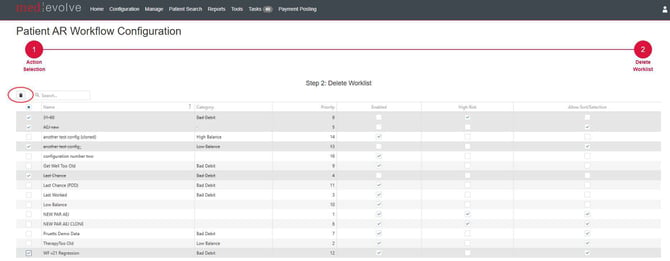
From the Action Selection, admins can delete worklist(s). We have added the ability to select multiple worklist to delete at the same time as well as the ability to disable/enable worklists and flag as high risk or to permit sort/selection. After selecting the desired worklist(s), select the delete icon.
Prioritize Lists
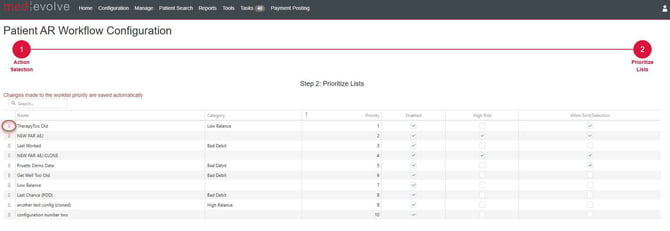
Admins can prioritize lists by navigating to the Prioritize Lists tile where they can drag and drop worklists in the desired order. They also have the option to hand key the priority number directly in the priority column within the grid.
Redistribute Lists
Patient AR redistribution now has a centralized place to redistribute all, redistribute unassigned, view history, or view the redistribution report.
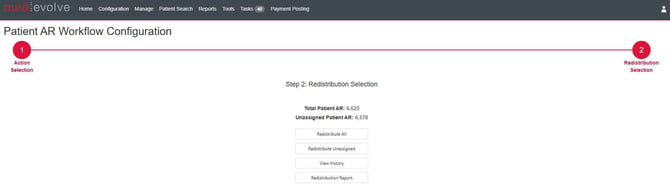
*Note: The bubbles above the actions can be selected to navigate back to the previous page or advance to next.
Improvements
-
Corrected an issue in which Patient AR did not distribute correctly
-
Added the ability to enter notes when creating or editing Managed Visits
-
Description is now enabled when hovering over denial and adjustment codes within the IAR current worklist view grid
-
Task count on the main menu is now accurately depicted
-
Resolved an error when viewing System > Custom Setting for some clients
-
Fixed an error that occurred when navigating from Step 3 to Step 2 bubbles within the Insurance AR, Financial Clearance, and Open Balance configurations in the Advanced Options and Redistribute Lists Tiles
-
Appointment status w/in the Financial Clearance action tab can now be updated and retained after update for native PM users
-
Days out values are now being retained within the Financial Clearance configuration history
-
Service Location is now displayed within the Patient AR current worklist view grid
-
nsurance AR patient worklists are now loading as expected when large worklists are configured to utilize the Show Next X claims for payer to launch the payer sub list and when selecting to view all patient claims from the Insurance AR action tab.