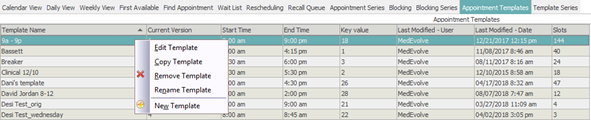
Appointment Templates are used when the Resources schedule varies. These will be used in conjunction with Template Series to expand appointment slots over a timeframe. Appointment Templates allows you to create the base template, with variable start times, categories, durations and concurrences throughout the day. All existing appointment templates will appear in the appointment templates list. To create a new appointment template, right-click in the list area and select New Template. You also have right-click options for Edit Template, Copy Template, Remove Template, or Rename Template.
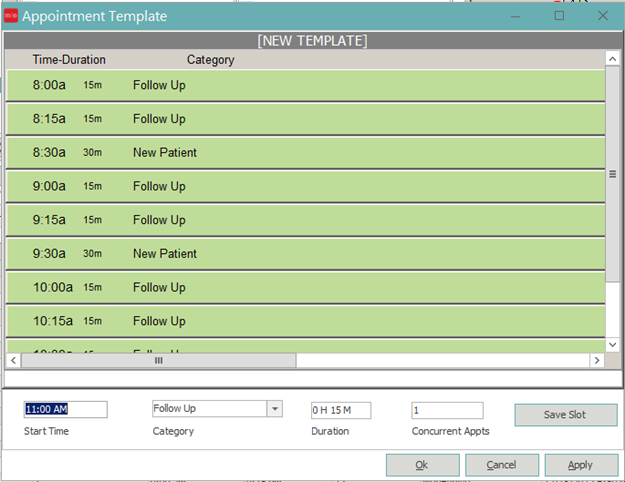
When creating your template, enter the Start Time, Category, Duration and Concurrent Appts, then click Save Slot.
Continue doing this until your template is complete.
If you make a mistake while creating the template, simply right-click on the time you wish to remove, then select Remove Appointment Slot or Remove All Appointment Slots accordingly.
Click OK when finished. You will be prompted to name your appointment template, where you can be as specific as needed to help you identify the appointment template you wish to use when creating your Template Series.
Template Series
Template Series is used to attach an Appointment Template to a specific Resource and Location, and expand that series across a specific date range or specific dates.
To create a new template series, right-click in the Template Series tab, then select New Template Series.
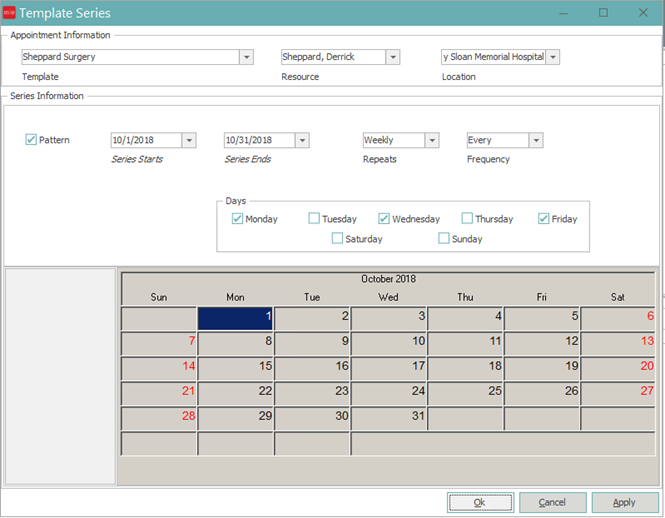
Choose the Appointment Template Name, Resource and Location needed for the series.
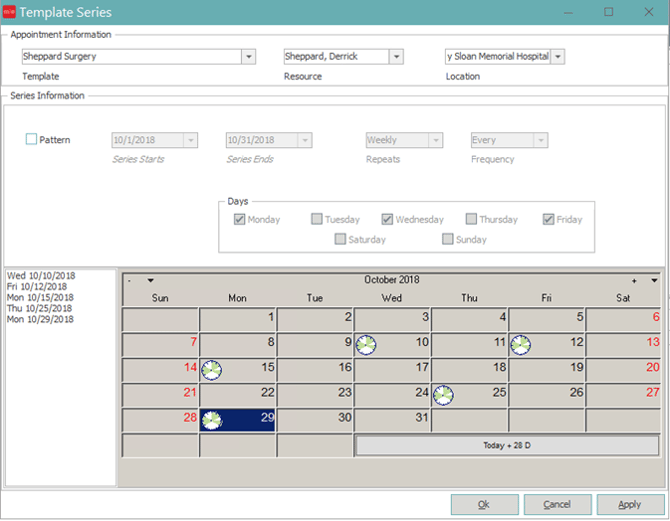
Pattern will default as the date choice, where you can enter the date range, repeat, frequency and days of the week you wish the template to apply. If the template should only apply to certain days that do not fit a pattern, uncheck the Pattern option, then use the calendar at the bottom of the page to select the dates you wish to apply the template.
When finished, click OK.
You’ll be prompted to expand the series now, select Yes or No accordingly.
When the series is expanding, do not click Stop unless you truly intend to stop the process and not create appointment slots.
Pattern Template Series View:
Non-Pattern Template Series View:
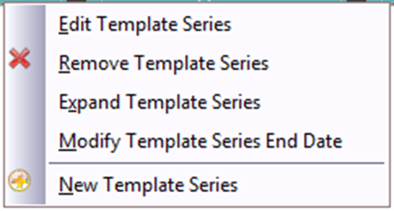
Template Series – Right Click Options
Edit template series: Allows the user to edit the existing template series as needed.
Remove template series: Allows the user to delete the template series. You’ll be prompted to confirm if you wish to remove it or not. This will only remove unscheduled appointment slots.
Expand template series: Allows the user to expand the template series. Typically used if edits are made to the Appointment Template associated with the Template Series, and those edits need to be pushed out to existing appointment slots.
Modify template series end date: Allows the user to modify the end date of a template series. Typically used to add time to the end date of an existing series, such as if you only expand out 6 months at a time, you will change the end date every few months to accommodate booking out appointments.